OTP and QR Codes Explained: How Your Authenticator Works
What is an OTP and why do you scan a QR code for two-factor login? Learn what's inside the QR code, how the 30-second code works and whether it's safe.
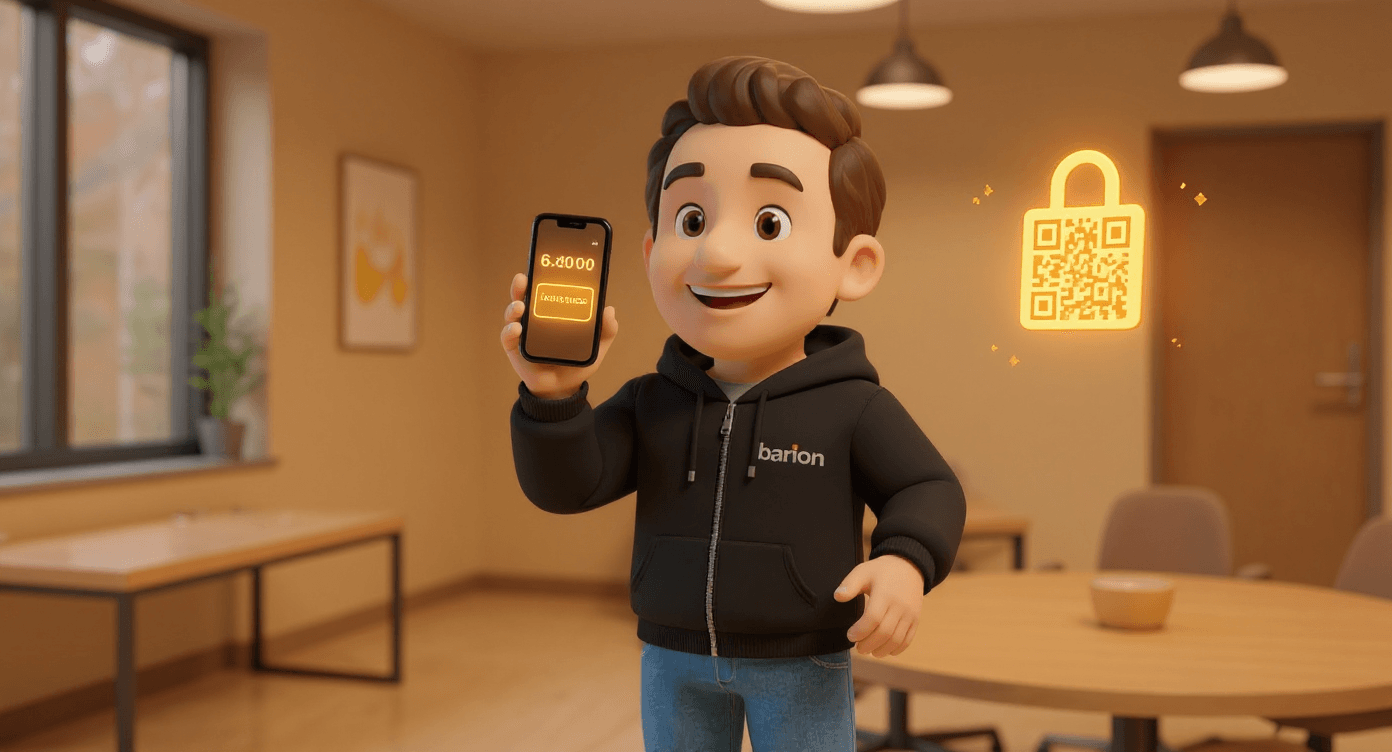
An OTP (One-Time Password) is a login code that’s valid only once and only briefly. You’ve probably seen them: those six digits your authenticator app refreshes every 30 seconds, which you enter alongside your password. To set this up, you scan a QR code. But what exactly does that QR code do, what’s inside it, and why is this actually safe? In this article we explain the technology without jargon - and above all: what it means for your business in practice.
This article builds on our blog on why multi-factor authentication is crucial. That one covers the why; this one covers the how.
What is an OTP?
An OTP is a password that works only once. Hence the name: One-Time Password. Instead of a fixed password that stays the same for years, you get a fresh code each time that expires again within half a minute.
There are two flavours, and the difference matters for understanding why your phone’s app works without internet:
| Type of OTP | Based on |
|---|---|
| HOTP (counter) | A counted number |
| TOTP (time) | The current time |
Virtually all authenticator apps - Microsoft Authenticator, Google Authenticator, Authy, Bitwarden - use TOTP: the time-based variant. That’s the version we explain in this article, because it’s what you encounter 99% of the time.
The OTP is almost always your second factor. Your first factor is your password (something you know), the OTP comes from something you have (your phone). That combination is what makes multi-factor authentication so strong: a hacker with only your password won’t get in.
Why a QR code during setup?
The QR code is nothing more than a handy moving box. When setting up an OTP, your phone and the server need to agree on one shared secret key. That key is a long, random string of characters - far too error-prone to type by hand. The QR code solves that: you scan it, and the entire key lands correctly in your app in one go.
You can almost always enter that same key manually too. Below the QR code you’ll then find a text code (for example JBSW Y3DP EHPK 3PXP). That’s the exact same key, just written out. So the QR code is purely convenience, not magic.
What’s actually in that QR code?
Behind the QR code is simply a piece of text: a special link that starts with otpauth://. If you were to decode the QR code, you’d see something like this:
otpauth://totp/Barion:you@barion.nl?secret=JBSWY3DPEHPK3PXP&issuer=Barion&algorithm=SHA1&digits=6&period=30
That looks technical, but each part has a simple meaning:
| Part | What it means |
|---|---|
| type | TOTP (time) or HOTP (counter) |
| label | Which account at which service |
| secret | The secret key - the core |
| issuer | Name of the service |
| algorithm | The calculation method |
| digits | Number of digits in the code |
| period | Validity in seconds |
The only truly secret part is secret: the shared key. The rest are settings that determine how the code is calculated and how your app displays the account. That secret is what your phone and the server both store and use to calculate the same codes.
How does the 30-second code work?
This is where the elegance of TOTP comes in. After scanning, your phone and the server both have the same secret key. From that moment on, they no longer need each other to create codes. Here’s how it goes:
Both have the same key
After scanning, your app and the server both know exactly the same secret key.
Both have the same clock
The current time is rounded to blocks of 30 seconds. Phone and server are in the same time block.
Both do the same calculation
Key + time block go through the same mathematical formula (an HMAC hash). The same 6-digit code comes out each time.
Comparing at login
You type in the code, the server has calculated it too. If they match, you're in.
Because the calculation is based on the time, nothing has to travel back and forth between your phone and the server. That’s why your authenticator app also works in airplane mode or without signal: it simply calculates by itself.
30
seconds valid
standard TOTP time block
6
digits
the most common code length
1m
combinations
with 6 digits (000000-999999)
Why is this safe (and why not always)?
An OTP via an authenticator app is strong for three reasons. But to be honest: it’s not a silver bullet against everything. That nuance matters.
Still, there’s one type of attack a regular OTP is vulnerable to: real-time phishing, also known as ‘adversary-in-the-middle’. A fake site asks you to enter your code and uses it within those 30 seconds to log in to the real site itself.
Read more about a layered approach on our cybersecurity page.
OTP versus other login methods
Not every second factor is equally strong. Here’s how the common methods compare:
| Method | How it works |
|---|---|
| Authenticator app (OTP) | Code every 30 seconds |
| Push notification | Tap 'Approve' |
| SMS code | Code via SMS |
| Hardware key / passkey | Physical or built-in key |
How to set it up safely
The pairing itself takes less than a minute. The difference between ‘enabled’ and ‘properly enabled’ lies in a few conditions.
Open the security settings
In the service (Microsoft 365, for example), go to two-factor or MFA settings.
Choose 'authenticator app'
Not SMS, unless there's really no other way. The app is safer and free.
Scan the QR code
Open your authenticator app, choose 'add account' and scan the displayed code.
Confirm with the first code
Type in the code from your app to prove the pairing is correct.
Save the recovery codes
Store the backup or recovery codes in a safe place, separate from your phone.
In business environments you ideally manage this centrally. Then an administrator can unpair a lost device and pair a new one, without an employee getting locked out. That’s exactly the kind of thing we take care of in our cybersecurity approach and during a cyberscan.
Conclusion
An OTP is a simple idea with a big impact: a code that lives for just 30 seconds, calculated from a secret key your phone and the server share. The QR code you scan during setup is merely the vehicle to transfer that key safely - after that, your app does the calculating itself, without internet.
Need help?
At Barion we help SMEs set up two-factor login in a safe and workable way - from choosing the right method to central management and recovery procedures. No technical story, just properly arranged.
Frequently asked questions
No. An authenticator app calculates the code itself based on the secret key and the current time. That's why it works in airplane mode or without signal. You only need internet for the website you then log in to.
You can get locked out if you haven't prepared anything. That's why, during setup, you save recovery codes (separate from your phone) or use an app with cloud backup. In a business environment, an administrator can unpair your old device and pair a new one.
Practically not. A six-digit code has a million possible combinations and is only valid for 30 seconds. An attacker would have to guess the right one within that half minute, and by then it's already replaced. The real risk isn't guessing, but phishing.
MFA (multi-factor authentication) is the broader principle: logging in with multiple factors. An OTP is one way to fill in that second factor. An SMS code, push notification or hardware key are other ways of filling in that same second factor.
That's unwise, because that image contains your secret key. If it's in your camera roll or cloud backup, delete it. If you want to be extra sure, re-pair the account so a new key is generated and the old one becomes worthless.
Microsoft Authenticator, Google Authenticator, Authy and Bitwarden are all fine and free. If you mainly use Microsoft 365, Microsoft Authenticator is the obvious choice. Preferably pick an app with a backup function, so you don't have to re-pair everything when you get a new device.

Ronald Evers
IT specialist at Barion with over 20 years of experience in SME IT. Ronald writes about IT trends, cybersecurity and digital transformation.
More articles
VLANs for SMEs: three networks you really want to keep separate
VLANs separate your guest, management and business network and reduce the risk of data breaches. Why network segmentation is essential for SMEs.

Power Outage at the Office? How to Prevent Data Loss
A power outage can lead to data loss and corrupt files. Discover why an Online Workplace protects your business against power failures.
AI-Driven Phishing: How to Recognise the New Attacks
Phishing emails are becoming increasingly convincing thanks to AI. Learn how to recognise AI-driven phishing and protect your business with practical tips.
Need help with your IT?
Our IT specialists are happy to help. Get in touch for a free consultation.